

Performance Max campaigns can drive strong results, but they can also make branded and non-branded traffic harder to separate.
Google says advertisers using Performance Max see 27% more conversions at a similar cost per action on average. But if your campaign is heavily capturing branded searches, these numbers may not reflect actual incremental growth.
That’s where Performance Max brand exclusions come in.
They help you control branded traffic inside PMax, so you can better understand whether your campaign is driving new demand or capturing people who already know the brand.
So if you’re trying to figure out whether your Performance Max campaigns are actually driving new customer growth or just capturing branded demand, 9AM can assist. We help you scale Google Ads performance through media buying services focused on clearer attribution and profitable growth.
In this guide, we’ll cover:
- What brand exclusions are and how they work in Performance Max
- Brand exclusions vs negative keywords vs brand inclusions
- When you should exclude competitor, branded, or reseller terms
- How to add brand exclusions to new and existing PMax campaigns
- Best practices, troubleshooting tips, and the latest Performance Max updates
What Are Brand Exclusions in Performance Max?
Brand exclusions in Performance Max help you stop your ads from appearing on specific branded searches.
This becomes useful when you want your PMax campaign to focus more on new customer acquisition instead of picking up traffic from people who are already searching for your brand or a competitor’s brand.
For example, let’s say you already run a dedicated branded Search campaign. If your Performance Max campaign also starts showing for those same branded queries, it can make reporting harder to analyze. Your ROAS may look stronger because branded searches usually convert at a higher rate.
Brand exclusions help you clean that up.
In Performance Max, brand exclusions apply across:
- Search inventory
- Shopping inventory
- YouTube Search inventory
So if someone searches for an excluded brand on one of these placements, your ads may stop appearing for those searches.
There’s one important exception here.
Google still gives you the option to allow Shopping ads to appear for excluded brand searches. This setting is useful for e-commerce brands, resellers, and multi-brand stores that still want Shopping visibility while restricting other ad placements.
Google identifies brand exclusions using brand entities instead of standard keyword matching. This means you’re excluding recognized brands from Google’s database rather than manually blocking individual search terms.
As a result, brand exclusions give you broader control compared to traditional negative keywords.
Brand Exclusions vs Negative Keywords vs Brand Inclusions
Brand exclusions, negative keywords, and brand inclusions all help you control where your ads show. The difference is how much control each one gives you and what type of traffic you’re trying to manage.
Brand Exclusions
Brand exclusions block selected brand entities from your campaign.
This tells Google that you don’t want your ads to show for searches connected to a specific brand. That could be your own brand, competitor brands, reseller brands, or partner brands you don’t want PMax targeting.
Use brand exclusions when you want to manage branded traffic at the brand level instead of adding every possible keyword variation manually.
Negative Keywords
Negative keywords block specific search terms or phrases.
They work best when you need to filter precise queries. For example, you may want to block terms like “free,” “jobs,” “used,” “cheap,” or any query that does not match your offer.
Performance Max now supports campaign-level negative keywords and negative keyword lists. Google says you can apply up to 10,000 negative keywords to a Performance Max campaign, and those negative keywords apply to Search and Shopping inventory.
So:
- If you want to block a full brand, brand exclusions are usually cleaner.
- If you want to block a specific phrase or intent pattern, negative keywords give you tighter query control.
Brand Inclusions or Restrictions
Brand inclusions work in the opposite direction.
Instead of blocking selected brands, they help limit a campaign to selected brand traffic. This is useful when you want a campaign to focus on specific branded searches rather than broader non-brand discovery.
For example, a brand-focused Search strategy may use brand inclusions to stay close to high-intent branded demand. This can help when you want tighter control over which brand terms your ads can serve on.
For Performance Max, advertisers usually talk about this as a “brand-only” setup, where the campaign is shaped around branded demand instead of broader acquisition.
Google Ads Brand Control Options
| Control Type | What It Does | Best For | Applies To | Use When |
|---|---|---|---|---|
| Brand exclusions | Blocks selected brand entities | Brand-level traffic control | Search, Shopping, and YouTube Search in PMax | You want to stop PMax from capturing your own brand, competitor brands, or reseller terms |
| Negative keywords | Blocks specific search terms or phrases | Precise query filtering | Search and Shopping inventory | You want to block irrelevant queries like “free,” “jobs,” “used,” or unrelated terms |
| Brand inclusions/restrictions | Limits targeting to selected brands | Brand-focused campaigns | Mainly Search brand controls | You want ads to focus on selected branded searches instead of broad discovery |
When Should You Use Brand Exclusions?
You should use brand exclusions when you want Performance Max to focus on new demand instead of branded traffic that already has strong intent.
They make the most sense when you want to:
- Avoid showing ads on competitor brand searches
- Separate branded and non-branded campaign performance
- Reduce spend on searches that are unlikely to bring new customers
- Make reporting easier to read and explain
- Protect dedicated branded Search campaigns from PMax overlap
How to Find Which Brands to Exclude
The hardest part about brand exclusions is usually figuring out which brands are actually affecting your Performance Max traffic.
A good place to start is Search Terms Insights inside Google Ads. This helps you spot branded queries your PMax campaign is already picking up.
As you review the data, look for patterns like:
- Competitor brand searches
- Reseller or marketplace brands
- Affiliate traffic
- Irrelevant branded queries
- Your own branded searches
If you already run a dedicated branded Search campaign, seeing your own brand appear heavily inside PMax is usually a sign that exclusions may help clean up reporting and acquisition performance.
For most accounts, your brand exclusion list will usually include:
- Your own brand
- Top 5 competitors
- Reseller or marketplace brands
- Partner or affiliate brands
Once you know which brands belong on your exclusion list, the next step is applying that list to your Performance Max campaign.
How to Add Brand Exclusions to a Performance Max Campaign
Google lets you apply brand exclusions both while creating a new Performance Max campaign and inside an existing campaign’s settings. The setup process only takes a few minutes, but choosing the right brand list can make a big difference in how clean your PMax traffic becomes.
New PMax Campaign
If you’re creating a new Performance Max campaign, you can add brand exclusions during the campaign setup process.
Here’s how to do it:
1. In your Google Ads account, click the Create icon.
2. Click Campaigns.
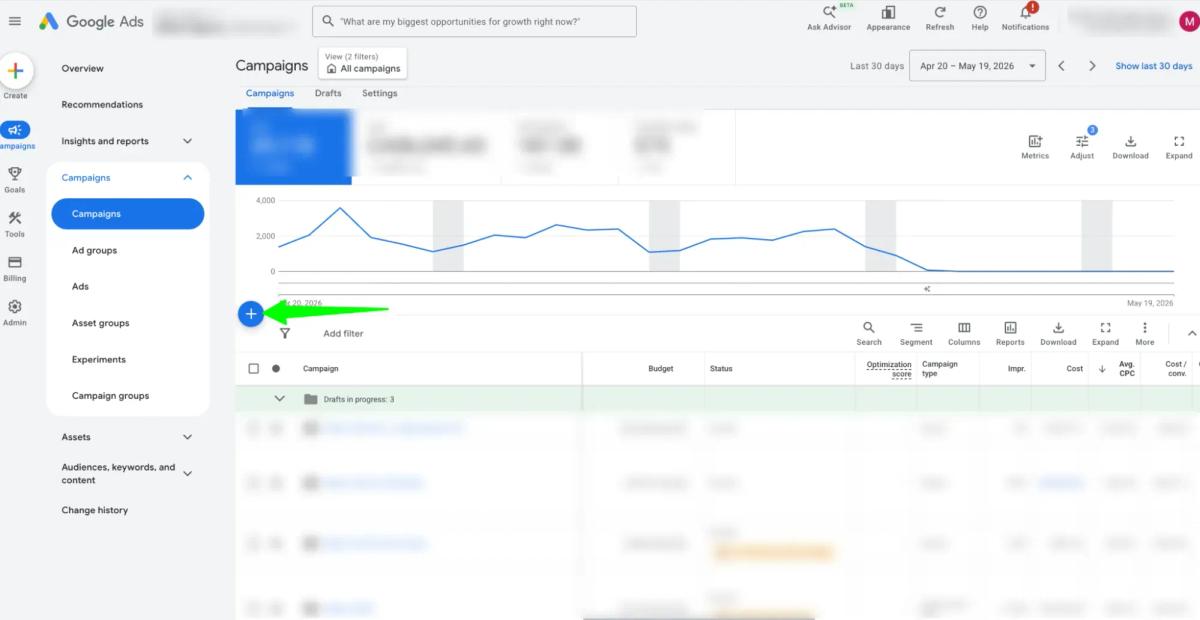
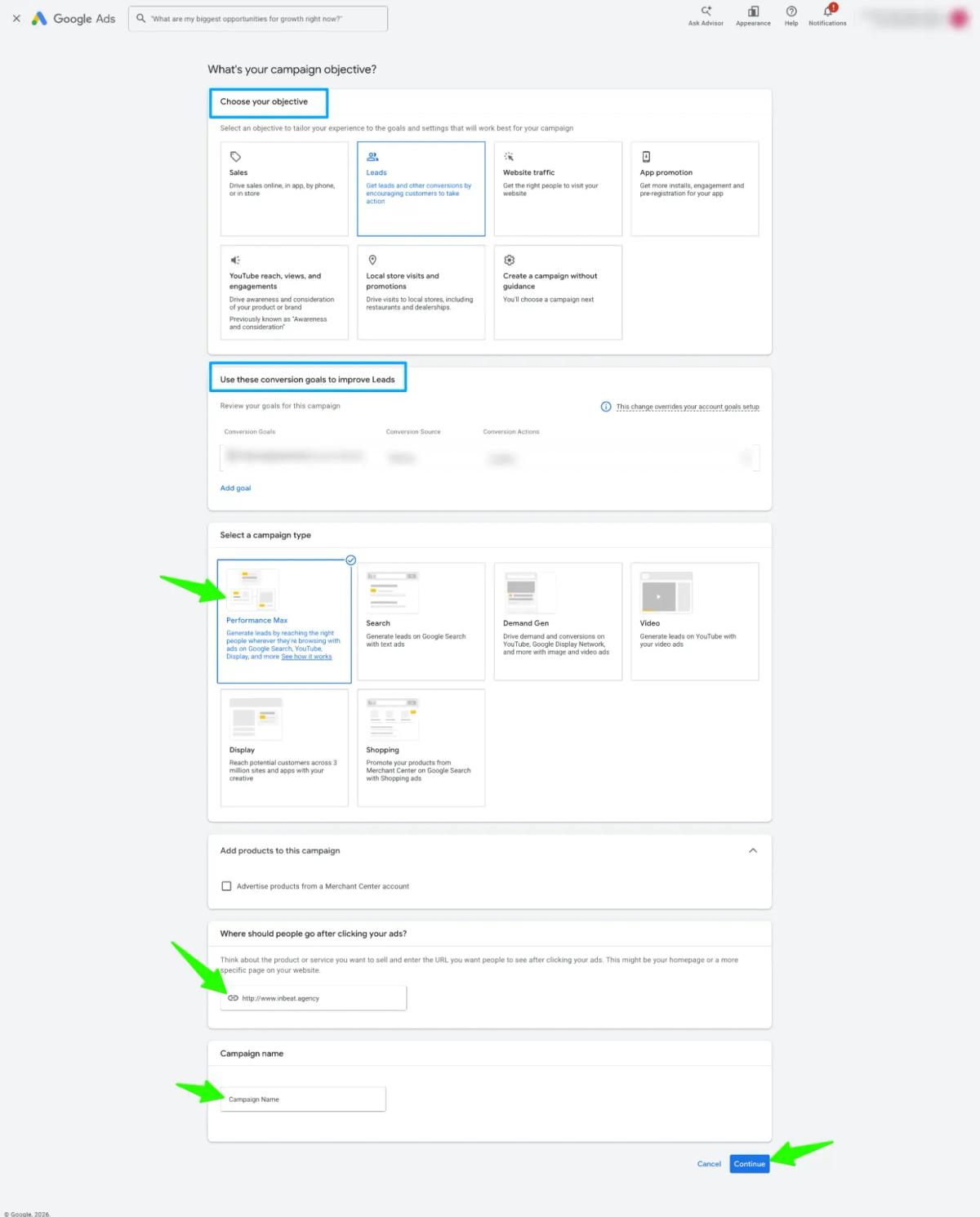
3. Create a new Performance Max campaign.
4. When you reach the Campaign settings section, click More settings.
5. Click Brand exclusions.
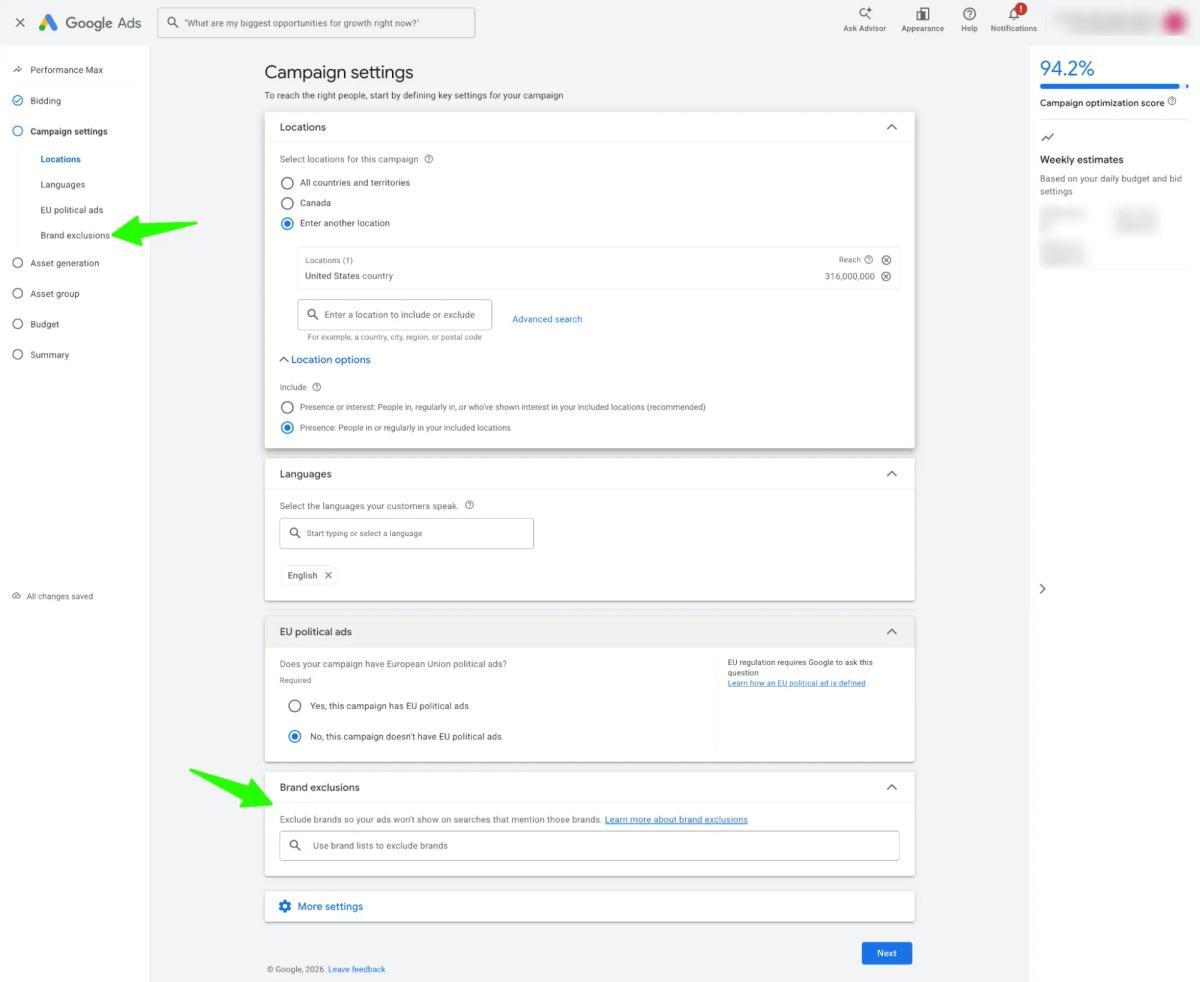
6. Select the brand list you want to apply.
7. If you do not already have one, click New brand list and create it.
8. Choose whether to check Allow Shopping ads on searches that mention excluded brands.
- Check it if you still want Shopping ads to appear when someone searches for an excluded brand.
- Leave it unchecked if you want stricter exclusions across supported PMax inventory.
9. Complete the rest of your campaign setup.
We recommend deciding whether to allow Shopping ads or not based on your campaign goal. If your campaign is built for clean non-brand acquisition, keep Shopping restricted too. If you’re a reseller or multi-brand retailer, allowing Shopping ads may still make sense.
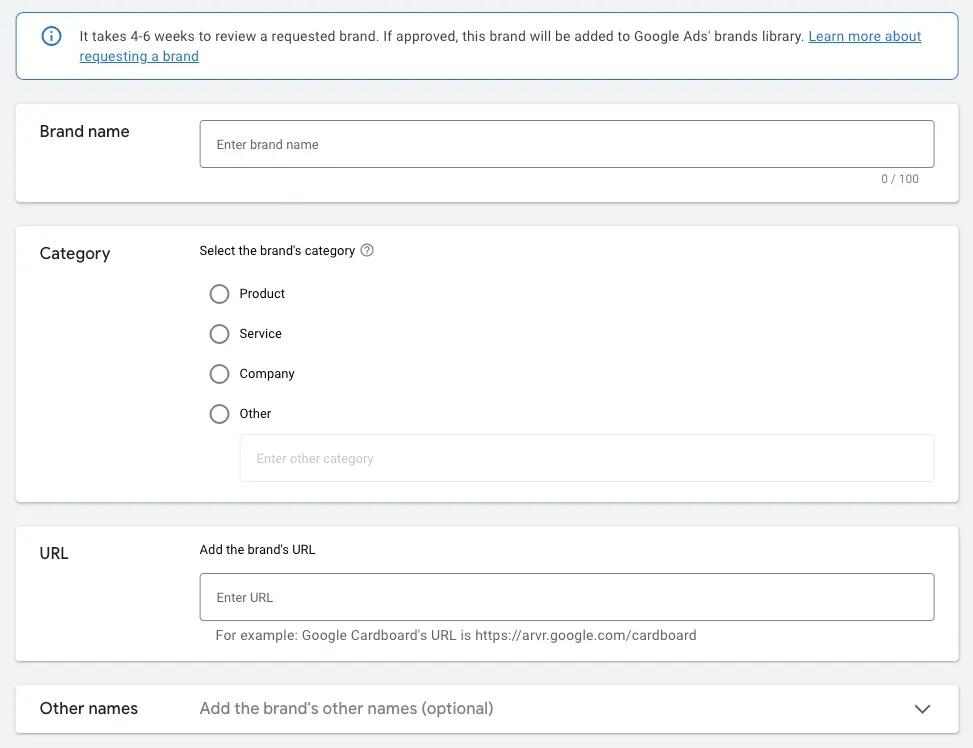
Note: One thing to keep in mind is that Google uses a predefined brand library for brand exclusions. So if a brand doesn’t exist in Google’s system yet, you may need to request it manually before you can exclude it.
As per Google, brand approval can sometimes take 4 to 6 weeks, so it’s worth submitting those requests early if you already know which brands you want to block.
Existing PMax Campaign
If your Performance Max campaign is already running, you can still add brand exclusions from the campaign settings.
Here’s how:
1. In your Google Ads account, click the Campaigns icon.
2. Open the Campaigns drop-down menu.
3. Click Campaigns.
4. Go to the Settings tab.
5. Select the Performance Max campaign you want to update.
6. Scroll to Additional settings.
7. Click Brand exclusions.
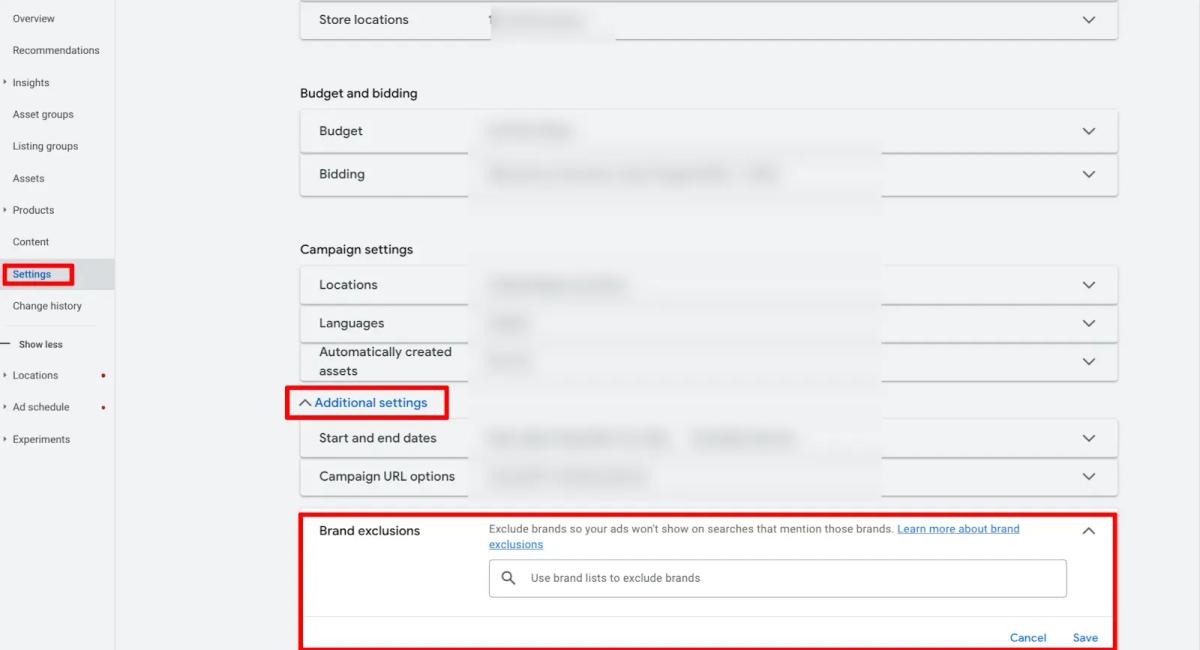
- Choose an existing brand list or create a new one.
- Decide whether you want to allow Shopping ads on searches that mention excluded brands.
- Click Save.
After saving, give the campaign some time before judging the impact. Then check your Search Terms Insights and performance data to see whether branded traffic starts dropping from PMax.
Performance Max Brand Exclusions Best Practices
Brand exclusions work best when you use them with a clear campaign goal. The point is not to block every brand you can find. The goal is to keep PMax focused on the traffic you actually want.
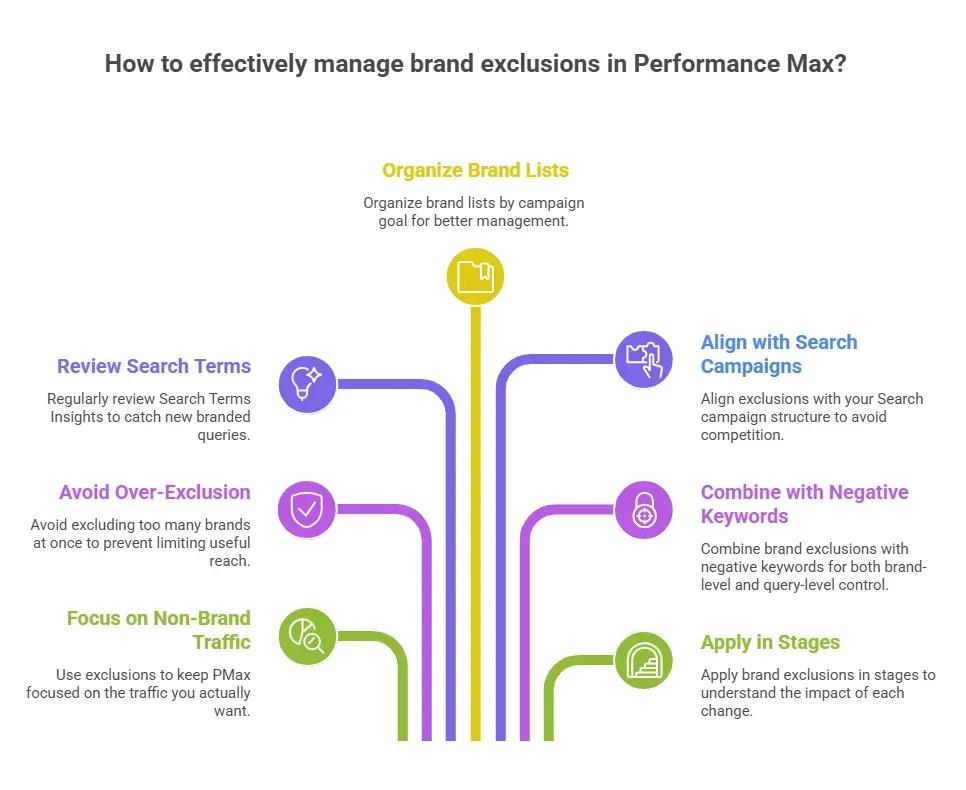
Below, we have shared a few best practices that we follow when managing Performance Max brand exclusions:
- Use exclusions to keep Performance Max focused on non-brand traffic.
- Avoid excluding too many brands at once, since that can limit useful reach.
- Review Search Terms Insights regularly to catch new branded queries.
- Organize brand lists by campaign goal, such as own brand, competitors, partners, or resellers.
- Align exclusions with your Search campaign structure so PMax does not compete with branded Search.
- Combine brand exclusions with negative keywords when you need both brand-level and query-level control.
Based on our experience, we recommend applying brand exclusions in stages instead of changing everything at once.
Start with your own brand and the most obvious competitor or reseller terms, then review fresh campaign data before adding more exclusions. This makes it easier to understand which changes improved traffic quality and which ones may have limited useful reach.
A simple rule: if a brand term makes your reporting messy or pulls budget away from new demand, it probably belongs on your review list.
How to Measure the Impact of Performance Max Brand Exclusions
After you apply brand exclusions, don’t judge the change too quickly. Give the campaign a little time to collect fresh data, then compare performance before and after the update.
Start with your non-brand numbers. Look at non-brand CPL, which is the cost of generating leads from non-branded traffic only, or non-brand ROAS before the exclusions were added. Then compare them to the performance after the change.
You should also track:
- Conversion volume
- CPA
- ROAS
- Conversion rate
- Impression volume
- Search Terms Insights
- Branded Search campaign performance
A good checkpoint is 7 to 14 days after implementation. Review Search Terms Insights and see whether branded queries have dropped from your PMax traffic.
Then compare Performance Max against your branded Search campaigns. If your brand Search campaign starts capturing more of the branded demand again, and Performance Max becomes more focused on non-brand traffic, your exclusions are doing their job.
How to Troubleshoot Performance Max Brand Exclusions
Even after you apply brand exclusions, you may still see some unexpected traffic or performance shifts. That does not always mean the setup is broken. In many cases, you just need to check the settings and give the campaign enough time to adjust.
The most common issues you should look for are:
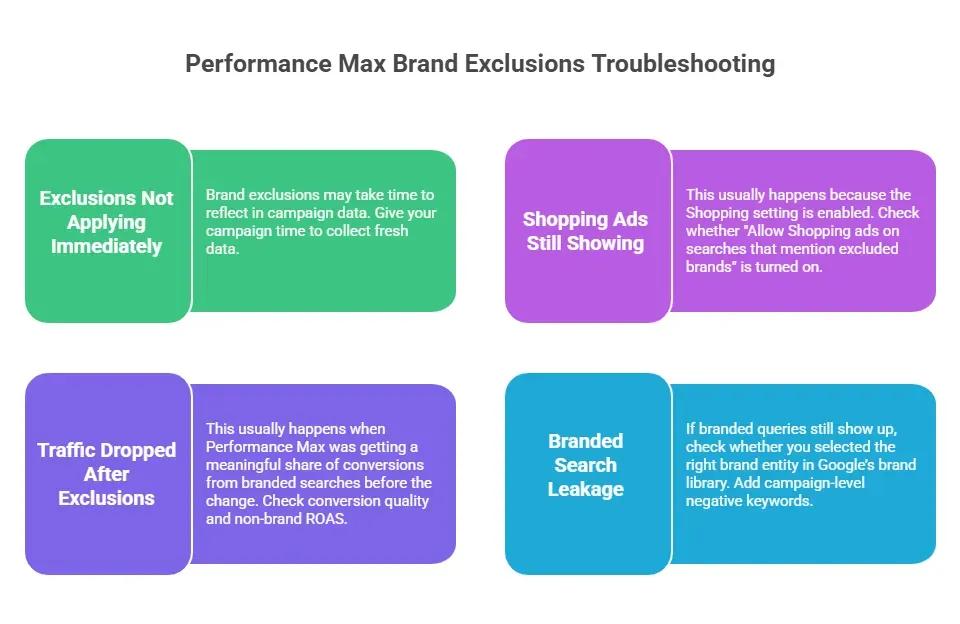
Brand exclusions are not applying immediately
Brand exclusions may take some time to reflect in your campaign data. If you just added them, avoid making another major change right away. We recommend giving your campaign some time to collect fresh data, then checking Search Terms Insights again.
Shopping ads are still showing for excluded brands
This usually happens because the Shopping setting is enabled. Check whether “Shopping ads on searches that mention excluded brands” is turned on. If it is, Shopping ads can still appear for those excluded brand searches.
Traffic dropped after applying exclusions
We usually see this in our daily practice when Performance Max was getting a meaningful share of conversions from branded searches before the change.
So, before reversing the exclusion, check conversion quality, non-brand ROAS, CPA, and branded Search performance. A traffic drop is not always bad if the remaining traffic is cleaner.
Branded search leakage is still appearing
If branded queries still show up, check whether you selected the right brand entity in Google’s brand library. For leftover phrases that do not get covered cleanly, add campaign-level negative keywords. This helps close the gaps that brand exclusions may miss.
2026 Performance Max Updates for Brand Exclusions: What’s New
Google has added more controls and reporting for Performance Max, which matters if you’re using brand exclusions to clean up traffic quality.
The following are the updates worth knowing:
- Format-specific Shopping controls: In January 2025, Google announced new brand exclusion controls for retailer campaigns with product feeds. The update lets retailers apply brand exclusions specifically to Search text ads, while still capturing branded traffic through Shopping ads. In other words, it’s a Search-only exclusion option for retailers.
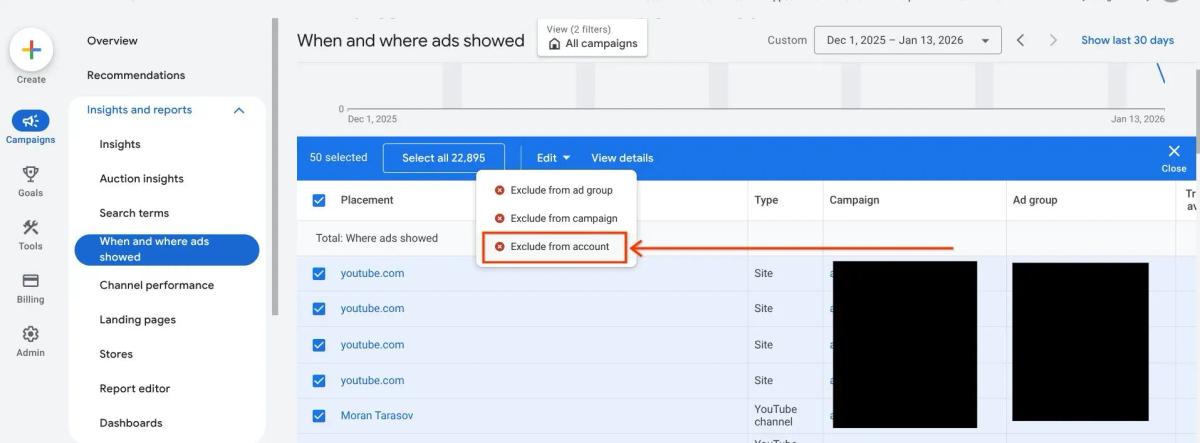
- Expanded “where ads showed” reporting: In February 2026, Google Ads expanded the “where ads showed” report for Performance Max. Performance Max campaigns now display Search Partner Network placements directly within the “When and where ads showed” report; previously PMax showed empty rows or “Other” categories.
- Account-level placement exclusions: In January 2026, Google Ads started allowing account-level placement exclusions across campaigns, including Performance Max, Demand Gen, YouTube, and Display. This gives you one central place to block unwanted placements.
Note: Starting May 27, 2025, Google began moving brand exclusions in Search campaigns into AI Max settings. This does not affect Performance Max campaigns directly, but it can still create confusion if you manage brand controls across both Search and PMax campaigns.
Improve your Performance Max Strategy with 9AM
Performance Max brand exclusions give you more control over where your ads appear and how your campaign performance is measured.
Whether you want to separate branded and non-branded traffic, reduce wasted spend, or keep PMax from overlapping with branded Search campaigns, the right exclusion strategy can make your reporting cleaner and your acquisition efforts easier to scale.
Key takeaways
- Brand exclusions help stop Performance Max from targeting selected branded searches
- Exclusions apply across Search, Shopping, and YouTube Search inventory
- Shopping ads can still appear for excluded brands if the Shopping setting is enabled
- Brand exclusions and negative keywords serve different purposes inside PMax
- Search Terms Insights can help you identify branded traffic patterns
- Applying exclusions in stages makes performance changes easier to evaluate
- Campaign-level negative keywords now provide more control inside Performance Max
- Measuring non-brand performance helps you understand actual acquisition impact
If you want to improve traffic quality, reduce branded overlap, or get clearer reporting from your Google Ads campaigns, 9AM can help you manage and scale paid media with cleaner attribution and stronger performance visibility.
Get in touch with us to audit your current Performance Max setup and identify opportunities to improve non-brand performance.
FAQs
Can I exclude my own brand in Performance Max?
Yes. Many advertisers exclude their own brand in Performance Max when they already run a dedicated branded Search campaign. This helps separate branded and non-branded performance more clearly and gives you a better view of actual acquisition impact.
Do brand exclusions affect Shopping ads?
Yes, but only if you want them to. Google gives you a setting called “Allow Shopping ads on searches that mention excluded brands.” If this is enabled, Shopping ads can still appear for excluded brand searches.
How long do brand exclusions take to apply?
Brand exclusions usually start working shortly after being added, but you should wait around 7 to 14 days before evaluating performance changes properly. If you request a completely new brand entity from Google’s brand library, approval can take 4 to 6 weeks.
Are brand exclusions the same as negative keywords?
No. Brand exclusions block Google-recognized brand entities, while negative keywords block specific search terms or phrases. Brand exclusions are usually better for controlling branded traffic. Negative keywords work better for filtering unwanted queries or intent patterns.
Can I apply brand exclusions in bulk?
Yes. Google Ads allows you to apply brand exclusions across multiple campaigns using bulk edit settings. This is useful if you manage several Performance Max campaigns with separate branded and non-branded structures.
Can you exclude placements in Performance Max?
Yes. Google now supports account-level placement exclusions for Performance Max. This lets you block specific websites, apps, YouTube channels, and placements across eligible campaigns from one centralized exclusion list.
Can Performance Max still show branded traffic after exclusions?
Yes, sometimes. This can happen if Shopping ads are still allowed for excluded brands, the wrong brand entity was selected, or certain branded query variations are still slipping through. In those cases, campaign-level negative keywords can help tighten traffic control further.
Appendix
- https://support.google.com/google-ads/answer/11189316
- https://support.google.com/google-ads/answer/14505308
- https://support.google.com/google-ads/answer/16756291
- https://blog.google/products/ads-commerce/new-performance-max-features-2025/
- https://searchengineland.com/google-ads-rolls-out-account-level-placement-exclusions-467569
- https://support.google.com/google-ads/answer/14505308