Google Merchant Center Disapproved Products: What to Fix First
Fix Google Merchant Center disapproved products in the order that protects revenue: statuses, causes, food and beverage issues and a 7-step fix process.

· 17 min read
A couple of years ago, a food client messaged me on a Monday. Shopping revenue had dropped over the weekend even though nobody had changed the campaigns.
I opened Merchant Center and found several of their bestselling multipacks disapproved for a price mismatch, while Google listed dozens of low-volume items with warnings that could wait.
That morning shaped how I handle every disapproval list since.
Merchant Center can group the list by issue, so the products that actually pay for your campaigns can appear next to products that sell twice a month.
I’ll show you what Merchant Center’s product statuses mean and why Google disapproves products. Then I’ll explain which issues I see in food and beverage accounts and which ones I fix first.
P.S. If you want Shopping and Performance Max managed by a team that checks the feed before changing bids, the 9AM Google Ads team I work with does that every week.
My view is simple: a disapproval list is a revenue problem first. I fix issues in the order they cost sales, whatever order Merchant Center shows them in, and I measure progress by how much of the revenue-driving catalog can serve ads again.
What Does a Disapproved Product in Google Merchant Center Mean?
A disapproved product in Google Merchant Center can’t show for the affected country or marketing method, such as Shopping ads or free listings. Google lists five product statuses, including Under review, Processing, Approved, Limited and Not approved.
When I open Needs attention, I check for account-level issues first. A product warning can usually wait a few days, while an account suspension can stop your whole catalog from showing.
Warnings That Limit Product Performance
A warning means the product still shows, but its performance may be limited. Google says unresolved warnings can turn into disapprovals, so I treat them as a queue for the following week, sorted by the same revenue logic as everything else.
Product Disapprovals
A disapproved product stops showing in the affected country or marketing method. The disapproval applies to that item, so other eligible products can still show. This is where most of the daily work happens.
Preemptive Item Disapprovals
A preemptive item disapproval (PID) starts with a price or availability mismatch between your product data and your product pages. Google also disapproves products it thinks are likely to have the same problem, and you’ll need a review to clear the issue.
For me, a PID is the most dangerous item-level issue, because it can block products that had no mismatch.
Account Suspensions for Setup and Policy Issues
Setup or policy issues can affect the whole catalog. Google can give you a deadline to fix the issue, then suspend the account if it’s still open after review.
For serious violations such as misrepresentation, Google can suspend the account without warning. Misrepresentation is the suspension I see most, and I explain how I audit it below.
Issue | What stops showing | How fast I act |
|---|---|---|
Warning | Nothing yet, performance may drop | Within the week |
Product disapproval | That product in the affected country or marketing method | Same day for top sellers |
Preemptive item disapproval | Products at risk of the same mismatch | Same day |
Account suspension | Every product | Immediately |
Why Google Merchant Center Disapproves Products
Google Merchant Center disapproves products when the product data doesn't match the product page, when the data breaks the product data specification, or when the product breaks Shopping ads policies.
In the accounts I work on, six causes cover most of the list.
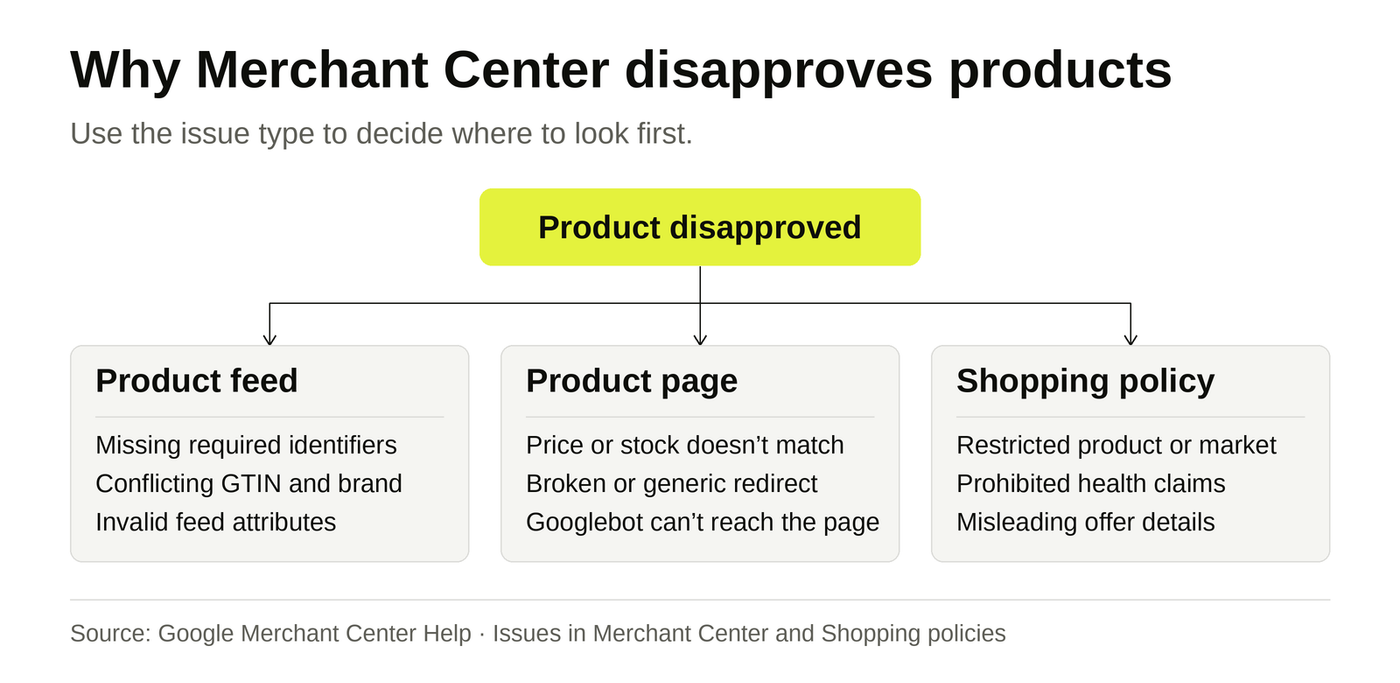
Start with the feed, the product page or the policy to find what’s blocking the item.
Price and Availability Mismatches Between Feed, Page and Markup
Google can flag a price or stock mismatch across the feed, the page and its structured data.
It’s the issue I see most after a sale starts or ends.
In practice, a feed that updates once a day can miss a noon promotion, so the page shows the sale price while Google still has the old one.
Invalid GTIN, Brand and MPN Values
Missing required identifiers can cause listing issues, and Google flags a GTIN when it conflicts with the brand you submitted.
I check the barcode on the actual pack first because a single can and a manufacturer’s case can have different GTINs.
If the manufacturer didn’t assign a GTIN, check which brand and MPN values Google requires for that product.
Image Issues: Overlays, Generic Images and Small Images
Google flags product images with promotional overlays, placeholders or dimensions below its minimum. Food brands run into the overlay rule frequently, because badges like “20% off” are easy to add to a product shot.
Product Page and Crawl Errors
Broken links, unavailable pages, blocked Googlebot access and generic redirects can lead to disapprovals.
A product URL that sends the shopper to a category page is one I find on almost every audit (very annoying, too!), and Google can’t verify that SKU’s price or stock there.
Incomplete Shipping and Return Policies
Missing shipping costs can stop affected products from showing, and a missing return policy can trigger an account warning.
Productsup also flags regional shipping and tax as a common source of issues.
For example, the rate for one delivery zone can be wrong even when the rest of the country is set up correctly.
Feed Specification Changes
When Google updates the product data specification, existing listings can get flagged as new rules take effect.
If disapprovals spike overnight and nobody changed the store, I check the specification updates before anything else.
Goes without saying, I encourage you to do the same!
Merchant Center Disapprovals Common for Food and Beverage Brands
In the food and beverage accounts I handled so far, I see the same five issues with multipack data, unit pricing, delivery settings, health claims and alcohol rules.
For a single drink, those checks can cover the pack count, the price per liter and the markets where it’s eligible to show.
When I take over a food account, I check the issue export for these five problems first.
They tell me which fixes need someone from the store or fulfillment team.
Multipack and Bundle Attributes on Variety Packs
Use the multipack attribute for packs you put together from identical products.
For retailer-made multipacks, Google requires it for free listings and for Shopping ads in the listed countries, including the US. Submit the full pack price and leave the attribute blank for a 12-pack the manufacturer already assembled.
Different flavors in a variety pack rule out multipack. Set is_bundle to yes for a retailer-made bundle with a main product and different add-ons, such as a full-size bag of coffee with two sample bags. Leave both attributes blank for an equal mix of flavors or a pack the manufacturer assembled.
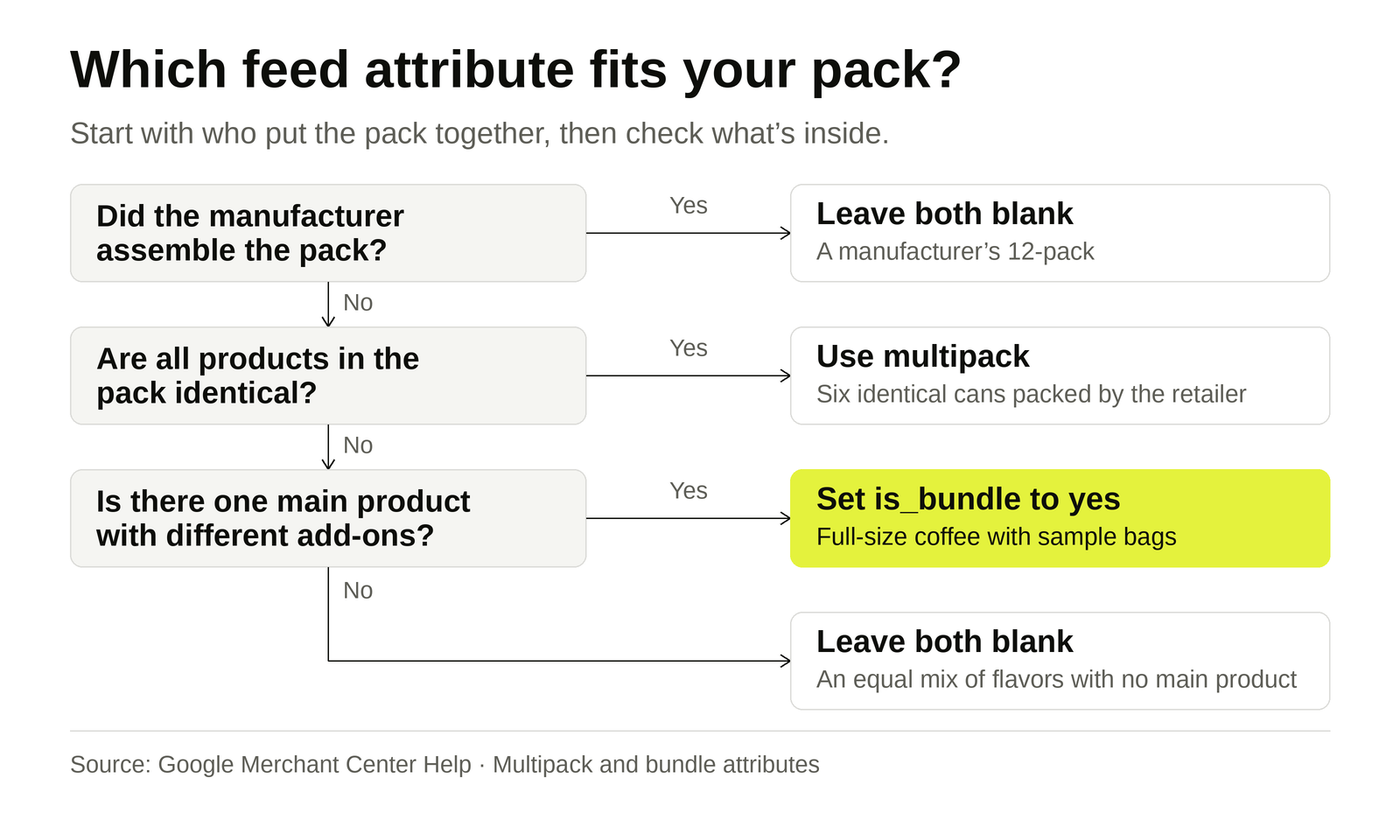
Who assembled the pack and what’s inside determine which attribute to send to Google.
Unit Pricing for Packaged Food
Google recommends a unit pricing measure for food and drink when shoppers benefit from a per-unit price.
It requires the attribute for products subject to local unit-pricing rules in the EU, EFTA countries, the UK, Australia and New Zealand, including some products sold by weight or volume.
So, here’s my advice:
Use the base measure to set the comparison unit, such as 100 g for a bag of granola. For UK feeds, submit metric values because Google interprets imperial units as US units.
Delivery Settings for Perishable Products
Chilled and frozen products often ship on fewer days and may have a minimum order.
Enter the minimum order value in your shipping setup and include delivery and handling fees in the shipping cost. If checkout charges extra for cold shipping, include that fee for the affected products and delivery areas.
My rule for perishables is to set delivery times to the slowest realistic case.
A slightly longer promise costs far less than a shipping mismatch. If chilled orders leave Monday through Thursday, I build the weekend gap into the estimate.
Health Claims on Supplements and Functional Drinks
Google’s healthcare and medicines policy prohibits certain unapproved supplements, including products marketed as safe or effective for treating a disease without the required approval.
That’s why Google may flag a functional drink or gummy based on a claim.
Google can consider both the listing and the page it leads to.
The fastest fix I know is to compare the claims on the product page with the claims in the feed and keep both to what the label supports.
Alcohol Policy for Beverage Brands
Google’s alcohol listing policy also covers alcohol-free beer, wine and spirits.
Ads can run only in approved locations and can’t target anyone under 18, or under the local drinking age if it’s higher.
Google Ads also bars claims that alcohol has health benefits.
There’s a separate rule for foods and drinks high in fat, sugar or salt.
Google bars Shopping ads for those products from targeting minors.
Non-alcoholic drink brands are surprised by this one more than you’d think.
If you sell alcohol-free spirits, plan for restricted delivery from the start, since eligibility depends on the countries you’re targeting.
How to Measure Lost Product Coverage From Merchant Center Disapprovals
Lost product coverage shows how much of your catalog or its recent revenue is tied to items that can’t serve ads because of Merchant Center issues.
I measure it three ways, because a single number hides where the damage is (yes, I’ll get to it in a second).
I use the same country and marketing method throughout so an approval for free listings can’t mask a Shopping ads disapproval.
Side note: Counting disapproved items is where most teams stop. A client once told me their feed was "basically healthy", and it was, by item count, while their top-selling bundle had been disapproved for over a week.
Here are the three measures I track:
For SKU coverage, I divide the number of active products that can serve by the total number of active products. It’s easy to read and the least useful of the three, because every SKU counts the same.
For revenue coverage, I divide the last 30 days of revenue from products that can serve now by the last 30 days of revenue from all active products. This is the number I report to clients because it shows how much recent revenue is tied to products still eligible to serve.
For top-seller coverage, I check what share of the top 20% of products by revenue can serve. If this drops below 100%, I fix it the same day.
Revenue coverage = 30-day revenue from products that can serve ÷ 30-day revenue from all active products
Let’s take an example where a snack brand has 200 products and 12 are disapproved, so SKU coverage is 94%.
If those 12 products brought in $40,000 of $100,000 in monthly revenue, revenue coverage is only 60%. The second number tells you how urgent the list really is.
Merchant Center gives you part of this already.
The Issue Details Page estimates an issue’s impact using the lost click potential of the affected products, and the Priority fixes toggle shows issues likely to have medium or high impact when Google has enough data.
I look up revenue in Google Ads or the store’s sales reports to see which of those issues affect the products that sell most.
Measure | Data source | What it tells you |
|---|---|---|
SKU coverage | Merchant Center product export | Share of the catalog eligible to show |
Revenue coverage | Google Ads or store revenue by product ID | Share of recent revenue tied to products that can serve |
Top-seller coverage | Revenue ranking plus product status | Whether the products that pay for campaigns can serve |
Lost click potential | Merchant Center Issue Details Page | Google’s estimate of missed click opportunity for the affected products |
How to Fix Google Merchant Center Disapproved Products Step by Step
To fix disapproved products, clear account-level issues first, then export product issues and rank them by historical revenue at risk and lost click potential. Fix the root cause in the data source or on the product page and confirm the products serve again.
Below are the seven steps I follow on every account, in this order.
But if you’re more of a visual learner, I also picked up this clip for you:
1. Fix Account-Level Setup and Policy Issues First
Check the banner at the top of Merchant Center and the View setup and policy issues link on the Needs attention tab. If an account warning goes unresolved and Google suspends the account, every product stops serving. No item-level fix matters until this is clear.
2. Export Every Product Issue From the Needs Attention Tab
Go to Products, open Needs attention and download the CSV of affected items. I use the full export because I want every affected product ID, issue name and status in one sheet I can match with revenue by product ID.
3. Rank Issues by Lost Click Potential and Lost Revenue Coverage
Join the export to 30 days of revenue by product ID, then rank issues by the revenue tied to blocked products. I use lost click potential to break ties. If a SKU has two issues, count its revenue once in your total and keep both fixes on the list so it can serve again.
I fix top sellers today, other disapprovals this week and warnings next week.
Two hours of sorting usually saves days of fixing the wrong things first.
When two issues block roughly the same revenue, I make the quicker fix first and assign the slower one the same day. That gives the store or feed team more time to make and check the change.
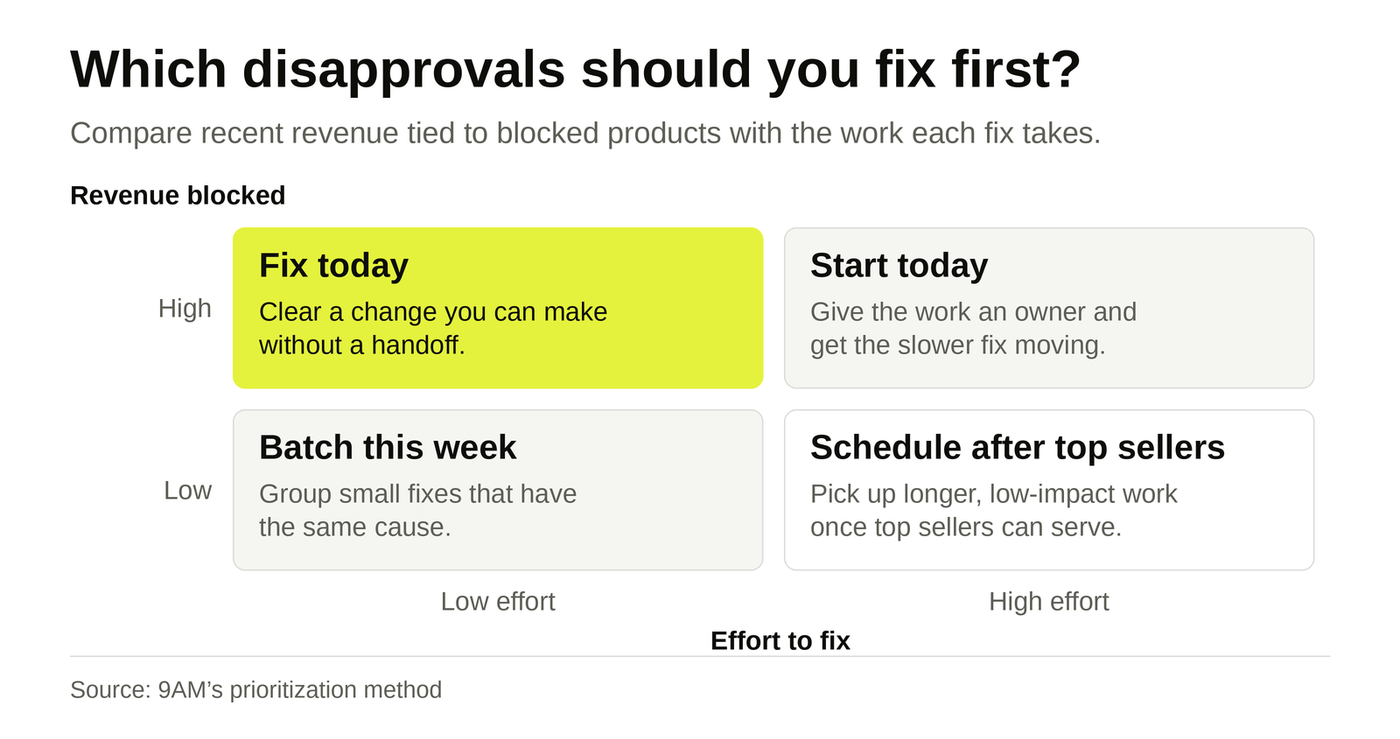
Clear quick fixes for top sellers first and assign the slower ones the same day.
4. Fix the Root Cause in the Product Data Source
Fix the issue where the data comes from, whether that’s the store platform, the feed app, a feed rule or a supplemental feed.
A manual edit in Merchant Center can override the feed for one SKU, so I fix the source when the same error can affect other products.
For price mismatches, the root cause is almost always timing.
I turn on automatic item updates for price and availability from the Automations tab under Products, which Google says helps prevent preemptive disapprovals.
Google can use the landing page data to correct a temporary mismatch while I fix the price or stock data at the source.
5. Fix the Product Page When the Store Is the Problem
Some issues come from the website: a price that differs from the feed, a page that redirects to a category, a missing return policy or a page Googlebot can't crawl.
I send the person who manages the site the product IDs and the exact issue for each one.
The same page problems hurt paid traffic beyond Shopping.
I check landing page alignment by clicking through the way a customer would and looking for the exact product, price and offer the ad promised.
6. Request a Review and Track the Review Window
For product-level data issues, correct the data at the source and resubmit it so Google can check it again. For setup and policy issues, use the Needs attention tab to request a review after the fix.
Google says those reviews can take up to 7 days, and some violations limit how many reviews you can request.
That limit is why I never request a review on a guess. I check every affected product against the fix first, then submit once.
7. Confirm the Products Serve Again in Shopping and Performance Max
Approval in Merchant Center doesn’t prove the products are back in your campaigns.
Check impressions by product ID over the following days in Google Ads, then confirm the items are included in the right product groups for Standard Shopping or listing groups for Performance Max.
Our guide to PMax vs Standard Shopping explains how overlap works.
If Performance Max and Standard Shopping target the same products and their targeting overlaps, Ad Rank decides which campaign serves, so check both product reports after the fix.
How to Fix a Google Merchant Center Misrepresentation Suspension
A misrepresentation suspension means Google found a serious issue with how you present your business or offer, such as hiding fees or leaving out information shoppers need before they buy.
Google can suspend the entire account without warning, and its products stop showing until Google reinstates the account.
Google’s misrepresentation policy is short and broad, and the email rarely says which page caused it.
Side note: A few weeks ago, I saw a Reddit thread titled “Google Merchant Center banned me. A lawyer fixed it in a month.”
Most suspensions I deal with need a slower, more careful audit of the site, and no lawyer.
I audit the site the way a cautious first-time shopper would, from the product page through checkout, so I can see where pricing or other details stop matching.
These are the gaps I check first on a food or beverage site:
Business identity: a physical address, phone number and email on the site, matching the business info in Merchant Center.
Policies: clear shipping, return and refund pages, linked from the footer and checkout.
Prices and offers: discounts that are real and shown the same way on the page and at checkout, with no hidden fees.
Claims: health, origin or "award-winning" claims you can back up, worded the same on the label, the page and the feed.
Checkout: a secure checkout that shows the full cost before payment.
Once everything is fixed, open the issue in Merchant Center and request a review. If you believe Google got the decision wrong, you can appeal the suspension.
I’d personally only submit again after a second full audit because failed reviews can put the account into a cool-down period.
How to Prevent Google Merchant Center Disapprovals
You prevent most Merchant Center disapprovals by keeping price and stock in sync automatically, catching data errors before upload and checking revenue coverage on a schedule.
Take it from me: prevention costs a fraction of the clean-up.
A pre-launch check gives you time to fix one feed rule before it passes the same error to every SKU in a promotion.
Every November I get the same message from at least one client: the holiday promo launches tomorrow, can you make sure Shopping doesn't break?
By then the safest thing I can do is delay the promotion until I’ve checked the feed.
These checks help prevent repeat disapprovals:
Keep automatic item updates on for price and availability, and resubmit the feed at least as often as prices change.
Schedule sale prices with the sale price attribute and its effective dates so the feed and the page switch at the same time.
Add attribute rules for recurring feed errors, such as stripping promo text from titles or filling empty brand fields when the correct brand is available in your source data.
Brief whoever edits product pages on what Merchant Center checks: price, stock, images and claims.
Check revenue coverage weekly as part of your weekly marketing cadence, and before any sale, launch or price change.
Read the product data specification updates a few times a year so new requirements don’t arrive as overnight disapprovals.
Keep Google Shopping Revenue Stable with Fewer Disapprovals
A disapproval list is easier to manage once you stop reading it top to bottom. Sort it by revenue, protect your top sellers first, and judge progress by revenue coverage. Item counts can wait.
It reminds me of how my local bakery handles a busy Saturday. They restock the bread that sells first, and every other shelf waits ten minutes.
The brands that stay ahead treat the feed as part of media buying.
They update the feed with new prices, promotions and packs before advertising them, so Shopping and Performance Max can keep showing products that are available to buy.
If you sell food or beverages, the 9AM Google Ads team for food and beverage manages your feed alongside your campaigns, quarter after quarter.
P.S. Feed health is one input in how I plan Shopping budgets each month. If you want a long-term partner who uses product availability to plan your campaigns, that's how my team works. Book a strategy call and let’s start building your plan!
Frequently asked questions
How long does a Merchant Center product review take?
Google says initial product reviews for Shopping ads and free listings typically take 3–5 business days. Reviews for setup and policy issues can take up to 7 days, and some violations limit how many reviews you can request, so fix everything before you submit.
Why are products approved in Merchant Center but not showing in Google Ads?
Approval means the product is eligible to show in the relevant market and marketing method. It may still be excluded from a product or listing group, be assigned to a paused campaign or get few impressions because of bids or budget. Check product status and impressions by product ID in Google Ads to find out why the product isn’t showing.
Do Merchant Center warnings hurt Shopping performance?
Yes, they can. Products with warnings keep showing, but Google says their performance may be limited, and unresolved warnings can turn into disapprovals. Fix warnings on top sellers within the week.
Does a disapproved product affect a whole Performance Max campaign?
No. A disapproved product stops serving, and the rest of the campaign can keep running. If the disapproved items were your top sellers, the campaign will often spend less or spend a larger share of its budget on weaker products until your top sellers are eligible again.
About Mustafa Alkhtab
Mustafa Alkhtab is Head of Performance Media at inBeat Agency, where he oversees paid media and performance creative results across the agency's accounts. Before inBeat Agency, he built growth programs for ecommerce, lead generation, and mobile app businesses in international markets. He writes about media buying, measurement, and conversion rate optimization.
More from Mustafa Alkhtab