Google Ads Location Targeting: Find Spend Outside Your Service Area
Google Ads location targeting audit: compare Presence and Presence or Interest, read location reports and find spend that misses your service area.

· 14 min read
Your local campaign can look healthy in Google Ads while a share of your budget reaches people your business can't serve.
The problem is the targeting map shows the right city, but the clicks come from a wider set of people than the map suggests.
Google says so in its own documentation: location targeting relies on signals that vary, so 100% accuracy is not guaranteed. The default setting also reaches people who only showed interest in your area.
This guide explains the location settings, why spend leaks past a service area, and a seven-step audit to find it, size it and fix it.
P.S. If you'd like a second pair of eyes on your geographic settings, our Google Ads team runs this audit as part of account reviews. Book a strategy call to get it started.
TL;DR
Google Ads location targeting decides where ads can show, using a mix of location signals that are estimates.
The default option, Presence or Interest, also reaches people outside your area who searched for or viewed content about it.
Start the audit with a written service area, then compare targeted, matched and user location reports.
Check lead and booking addresses against the service area before changing anything.
Choose the location option from that data, then validate the change after two to four weeks.
Every paid click is a small experiment, and the useful ones teach you who becomes a customer. Spend outside the service area teaches nothing except that the settings were loose. We read geographic data the same way we read creative data: against qualified outcomes, with a written definition of what counts. That keeps location decisions tied to customers the business can serve, and stops the platform default from setting the scope of the campaign.
What Is Google Ads Location Targeting?
Google Ads location targeting is the set of campaign settings that control where your ads can appear, based on where people are or which places they show interest in.
It has four parts: the locations you target, the location option, the locations you exclude and, in AI Max for Search, ad group-level locations of interest.
This guide assumes the markets are already chosen and audits whether spend stays inside them. Our guide to market prioritization covers how to choose which markets to enter.
Location Target Types: Country, Region, City, ZIP Code and Radius
You can target geographic locations from whole countries down to a radius around an address, and add or exclude up to 1,000 locations in bulk. Each type fits a different service area shape:
Target type | Best for | Watch out for |
|---|---|---|
Country | National ecommerce and online services | Includes regions you may not ship to or serve |
State or region | Statewide services and licensed providers | Large states mix markets with very different demand |
Metro area (DMA) | TV-style regional reach | DMAs frequently extend far beyond the core metro |
City | Single-city services | City limits rarely match the real service area |
ZIP code | Precise lists, such as delivery zones | Small ZIPs are hard for Google to match reliably |
Radius | Single-location businesses with a drive-time area | Circles cross rivers, state lines and areas you don't serve |
Location Options: Presence and Presence or Interest
The location option, found under advanced location options in campaign settings, decides which people a target includes. There are two choices for targeting:
Presence or Interest (default): people who are in or regularly in your targeted locations, plus people who have shown interest in them through searches, recent visits or content they viewed.
Presence: only people who are in or regularly in your targeted locations.
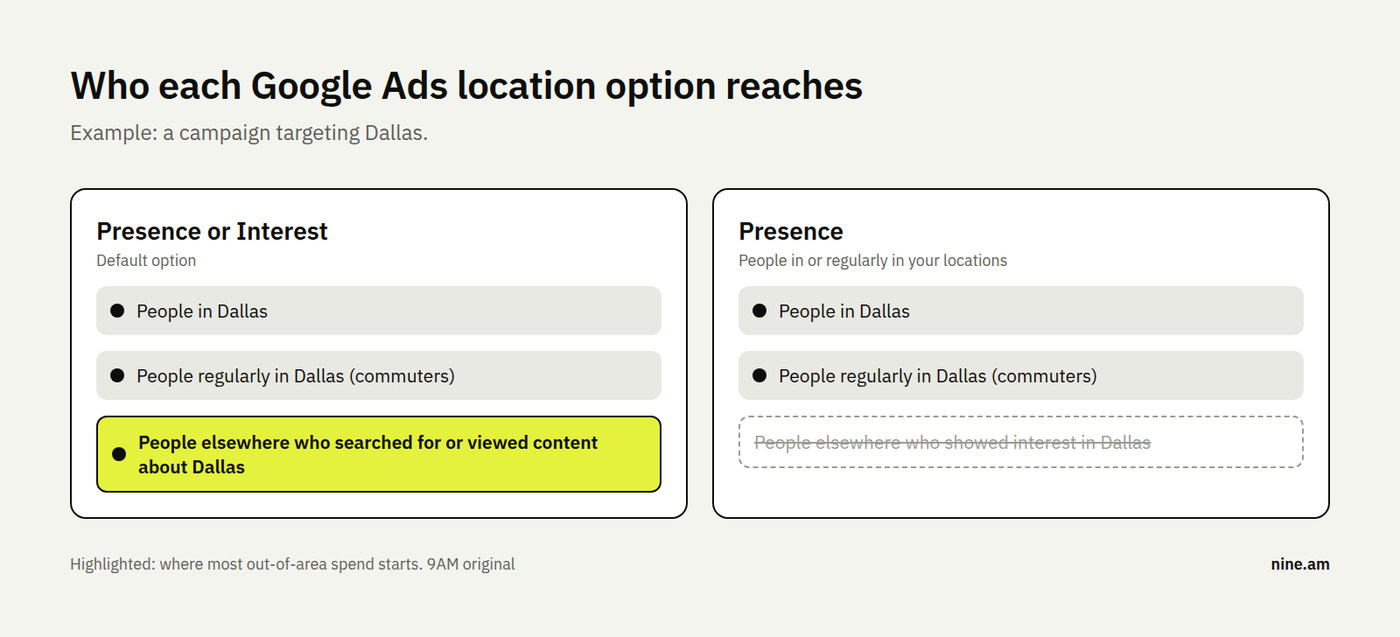
Who each Google Ads location option reaches for a campaign targeting one city. Source: 9AM original
Interest is where most out-of-area spend starts.
Someone in Chicago searching "dentist in Dallas" for a parent can match a Dallas target, and so can a person who viewed pages about Dallas, even with no plan to visit.
A third option, interest only, no longer exists.
Google removed it when it standardized location options, and the old setting can no longer be selected for Search, Display or Shopping campaigns.
Location Exclusions in Google Ads
Location exclusions stop ads from showing to people located in the areas you exclude. Exclusions now work on presence only: they block people likely to be physically in the excluded area, while people elsewhere who show interest in it can still see your ads.
Exclusions are most useful inside a broad target, such as a state with one county you don't serve, or a radius that crosses into a neighboring state.
Locations of Interest in AI Max for Search
AI Max for Search adds an optional, ad group-level setting called locations of interest, which works on top of campaign targeting and doesn't need to match it. A user must fit the campaign's location settings and show interest in the ad group's selected places.
This helps destination businesses, such as a specialist clinic that serves patients who travel in for treatment; our healthcare PPC team sets up this kind of split for health brands.
For most local service campaigns, the campaign-level option still does the main work.
Why Google Ads Spend Lands Outside Your Service Area
Google Ads spend lands outside a service area for four reasons, and the first is the default Presence or Interest option described above. The other three sit in how targets are drawn, how location is estimated and how campaign types differ.
Target Shapes Are Larger Than the Service Area
Most service areas follow roads, travel time or licensing rules, while targets follow circles and administrative boundaries. A 25-mile radius around a clinic can include a suburb across a river that patients never cross, and a DMA can run hours beyond the metro.
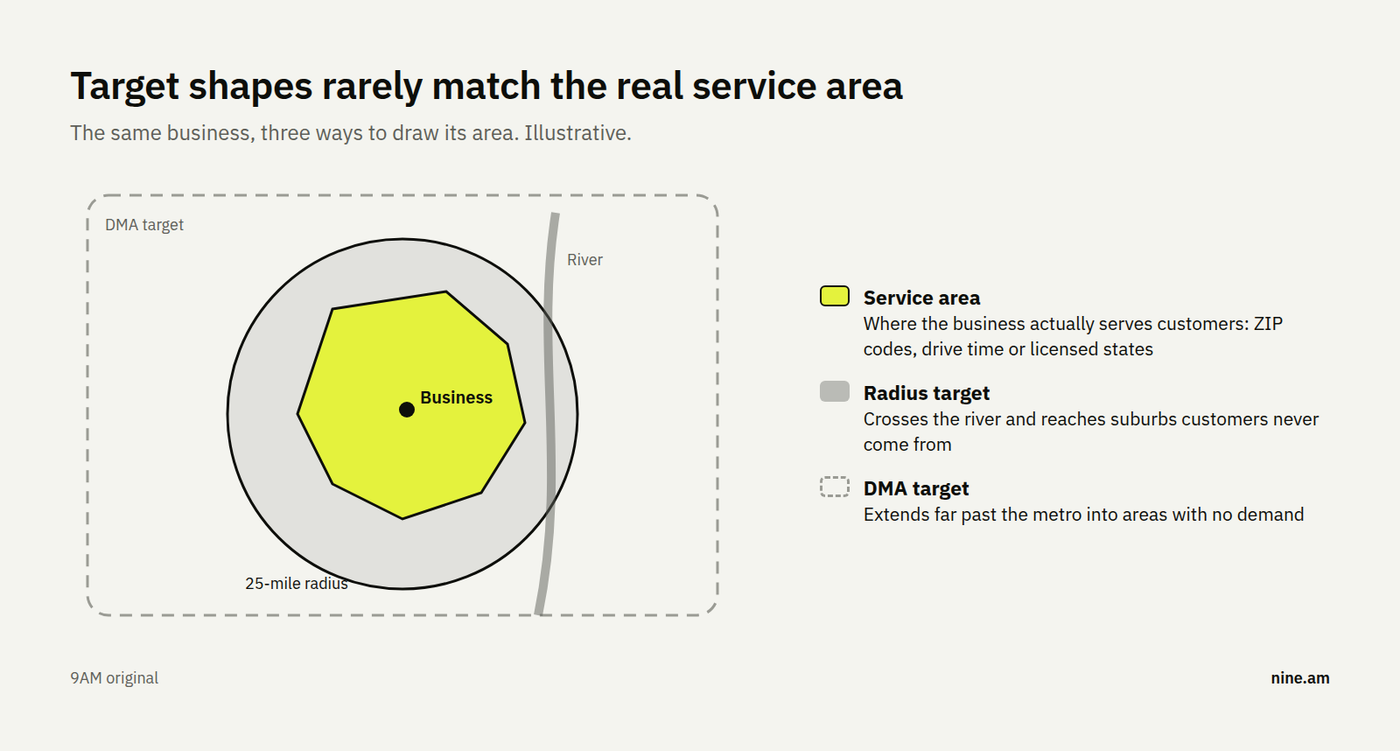
A real service area compared with a radius target and a DMA target around the same business. Source: 9AM original
Location Signals Are Estimates
Google estimates a person's location from signals such as device settings, IP address and behavior, and the matched location in reports can be either a physical location or a location of interest. Commuters, travelers and people using mobile networks can all be placed in the wrong area.
Campaign Types Set Location Rules Differently
Location options apply to Search, Display and Demand Gen, and Google lists presence and interest together as the default and recommended setting for Demand Gen. Performance Max follows the same targeting and presence-only exclusion rules, but reports less detail by campaign channel.
Each campaign type needs its own check. Network settings matter too; our guide to Google Search Partners covers how to judge traffic from partner sites separately.
How to Find Google Ads Spend Outside Your Service Area, Step by Step
Find out-of-area spend by defining the service area first, then checking settings, reports and lead addresses in order. Each step relies on the one before it.
Step 1: Write Down the Real Service Area
Write down the area the business actually serves, location by location, before opening Google Ads. Use the unit operations already uses: a ZIP code list, a drive-time limit or the states where the business is licensed.
Side note to consider: Healthcare and other regulated services generally have hard limits, such as the states where a provider can see patients. Our list of healthcare PPC compliance questions covers how those rules shape a paid search account.
Step 2: Check Location Settings in Every Campaign
Record the location settings of every active campaign in one sheet. Google Ads Editor exports targets, location IDs, exclusions and the location option for the whole account.
Note three things per campaign:
Location option: Presence or Presence or Interest.
Targets: each location type and size, with the location ID.
Exclusions: what is excluded and whether it still matches the Step 1 service area.
Campaigns copied from an old template generally carry the default option and a target from a previous service area.
Step 3: Compare Targeted and Matched Locations Reports
Compare the targeted locations view with the matched locations view in the Locations report. Targeted locations show performance by the targets you set; matched locations show where ads appeared, based on either a physical location or a location of interest.
Sort both views by cost, then compare each location's share of spend with its share of conversions. A matched location outside the service area that takes 15% of spend and brings 3% of conversions is the first place to look.
Because matched locations mix presence and interest, this report shows where to look, and Step 4 shows who actually clicked.
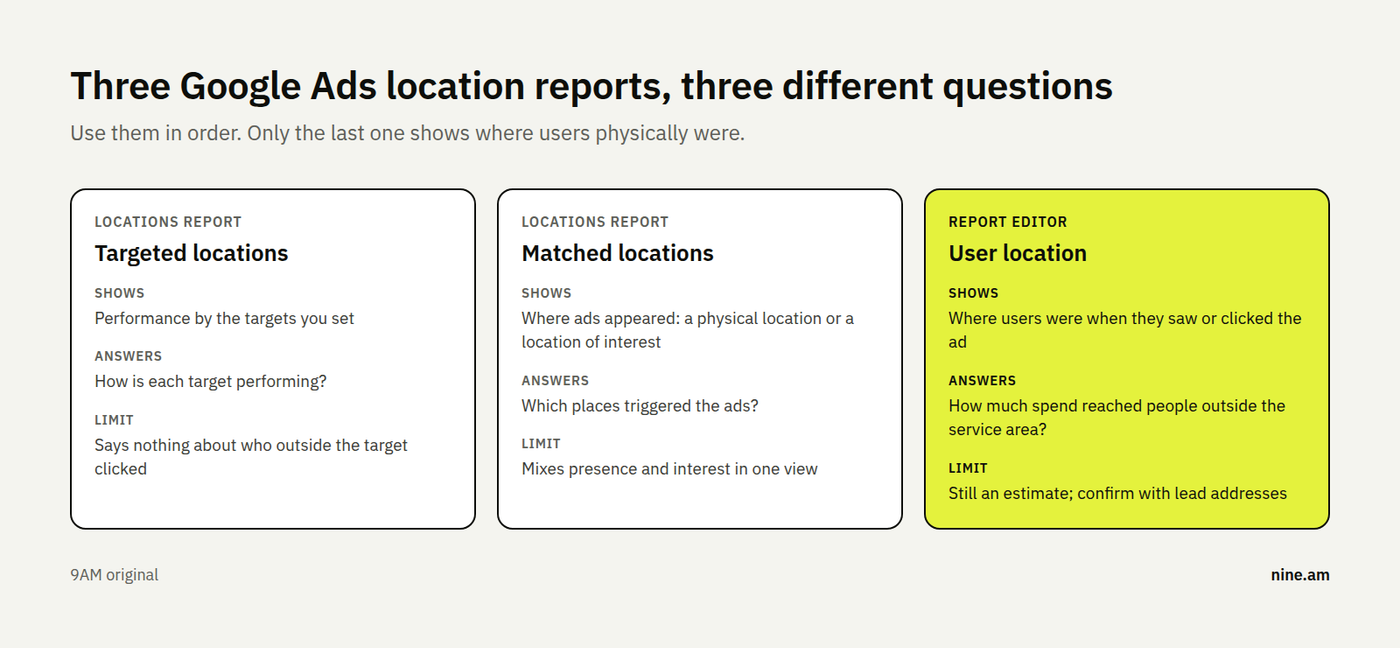
What the targeted, matched and user location reports in Google Ads each show. Source: 9AM original
Step 4: Build a User Location Report in Report Editor
Build a custom report in Report Editor with user location columns, because the standard views no longer show where users physically were. Search Engine Land explains the change and the custom report route.
Add these columns:
Campaign, so each location's results stay separate.
User location at the level your service area uses: city, ZIP code or metro.
Location type, where available, to split physical locations from locations of interest.
Cost, clicks and conversions, for the period you are auditing.
Then group every row into three buckets: inside the service area, adjacent to it, and far outside it. Total the cost in each bucket per campaign; the adjacent bucket usually needs a judgment call, while the far bucket rarely does.
Step 5: Check Lead and Booking Addresses Against the Service Area
Check where your leads and customers actually are, using the addresses or ZIP codes in your CRM or booking system. This is the ground truth: a click from outside the area can still come from someone who lives inside it.
Match each paid lead to its campaign and mark it in or out of area. Where forms don't collect an address, add a ZIP code field; phone area codes are a weak proxy, since many people keep a number from a previous city. If you already import CRM outcomes into Google Ads, our guide to offline conversion tracking covers how to carry qualified status back by campaign.
Step 6: Size the Out-of-Area Spend
Size the problem before fixing it, so the fix matches the wasted ad spend. A fictional dental group with two clinics, one in north Dallas and one in Fort Worth, might find this:
Campaign | Spend | Out-of-area spend | Out-of-area leads | Qualified out-of-area leads |
|---|---|---|---|---|
North Dallas, implants | $8,400 | $1,930 (23%) | 14 | 1 |
North Dallas, general | $5,200 | $470 (9%) | 6 | 3 |
Fort Worth, implants | $6,100 | $1,710 (28%) | 11 | 0 |
Here the implant campaigns lose about a quarter of spend to areas that rarely produce patients, while half of the general campaign's out-of-area leads qualify. Those two findings call for different fixes.
Pro tip: If you run campaigns across the Dallas and Fort Worth area, our Dallas PPC team can run this sizing on your account.
Step 7: Choose the Location Option and Validate the Edit
Choose the location option from the Step 3 to 6 data. If out-of-area spend is large and rarely qualifies, switch to Presence; if it qualifies at a similar rate to in-area traffic, keep Presence or Interest.
Google reports that advertisers in travel, real estate and education who moved to Presence or Interest saw 5% more conversions on Search, based on its internal data from 2022. That supports interest-based reach for destination businesses, and says little about a plumber or a local clinic.
Then make the smaller fixes:
Reshape targets to match the Step 1 area, using ZIP lists or several small radii.
Add exclusions for areas inside a target that you don't serve.
Adjust bids by location with Manual CPC or Maximize clicks. With target CPA, target ROAS, Maximize conversions or Maximize conversion value, location bid adjustments aren't supported, so targeting, exclusions and campaign splits do the work.
Validate after two to four weeks by re-running the Step 4 report and the Step 5 lead check, and compare cost per qualified lead before and after.
Expect fewer impressions after moving to Presence. Google notes most campaigns see that drop, and it is the point of the change when the removed traffic wasn't qualifying.
When Out-of-Area Clicks Are Worth Keeping
Out-of-area clicks are worth keeping when the people behind them become qualified customers at a cost you'd accept inside the area. Common cases include:
People moving to the area, researching services before they arrive.
Commuters and second-home owners, who buy where they work or vacation.
Destination services, such as specialist clinics, venues and travel.
Multi-state providers, such as telehealth services licensed in several states.
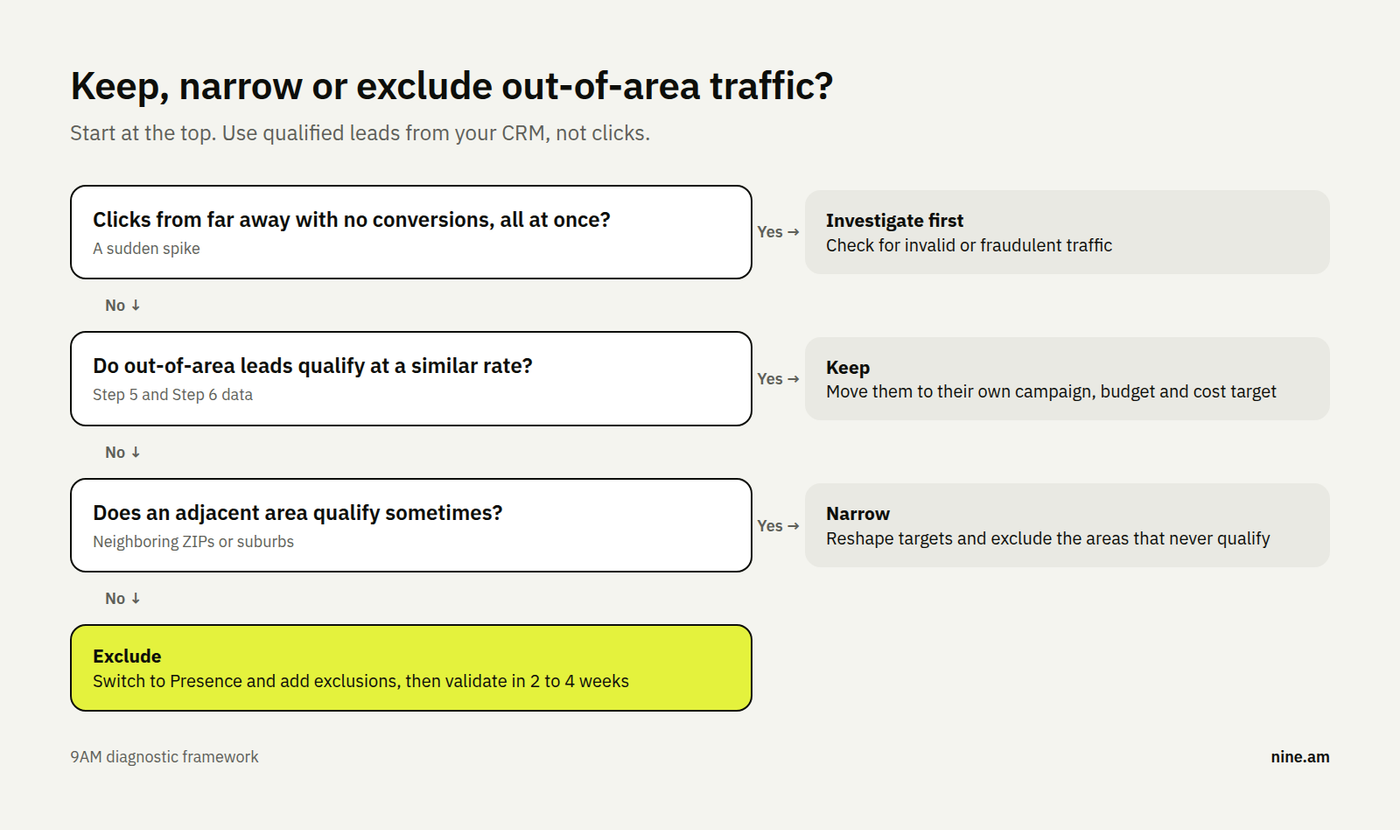
Decision tree for keeping, narrowing or excluding out-of-area traffic in Google Ads. Source: 9AM original
Decide on qualified outcomes from Step 5 and Step 6 and don’t rely just on location here.
When out-of-area interest does qualify, give it its own campaign with its own budget and cost target, so it can't take spend from local demand.
For destination Search campaigns using AI Max, target the source markets you want to reach with Presence, then add your service area as an ad group-level location of interest. Users must meet both conditions, and the location of interest can't be excluded at campaign level.
Pro tip: Test with a small budget and check qualified outcomes before expanding.
A sudden spike of clicks from far-off places with no conversions is a different problem; our guide to click fraud investigation covers how to check suspicious traffic.
How to Set Up Location Targeting for Multi-Location Campaigns
Set up multi-location campaigns so each location's budget reaches its own service area and the areas don't compete with each other. Two decisions shape the structure.
One Campaign per Location or a Shared Campaign
Use one campaign per location when locations differ in budget, services or demand, so each gets its own targets, budget and reporting. Use a shared campaign only when locations offer the same services at similar costs, and then split reporting by user location.
Separate campaigns also make Step 4 and Step 6 simpler, since out-of-area spend is easy to total per location.
Don’t forget to:
Send each location's ads to its own landing page with the address, hours and services for that location; our guide to landing page alignment covers matching the page to the ad.
Link each location's Business Profile through location assets as well, so ads show the nearest address.
Overlapping Service Areas and Exclusions
When two locations' areas overlap, decide which location owns the overlap and exclude it from the other campaign where separate coverage matters. Otherwise, traffic can land in either campaign, splitting the data and making each location's budget harder to control.
Review the overlap rules whenever a location opens or closes. Use search term and user location reports to check how traffic is distributed between your campaigns. If the pressure comes from other advertisers, our guide to auction insights shows what to check before raising bids.
Tighten Google Ads Geographic Targeting with 9AM
Out-of-area spend rarely shows up as a single bad number. It hides in default settings, oversized targets and reports that mix presence with interest, and it only becomes visible when ad data meets real customer addresses. The fix is usually small once the audit shows where the spend goes.
At 9AM, our paid search team audits location settings against your real service area, sizes the spend that misses it and changes targeting based on qualified outcomes. For healthcare brands, we add licensing and service-area checks to the same audit.
Book a strategy call and we'll review your location settings, your user location data and where spend is landing outside the area you serve.
FAQs
Does the Presence option stop every out-of-area click?
No. Presence narrows reach to people Google estimates are in or regularly in your locations, and those estimates can be wrong for commuters, travelers and mobile users. Expect fewer out-of-area clicks after the switch, and keep checking the user location report.
Why does the matched locations report show my target city for users who were elsewhere?
The matched locations view can record a location of interest as the match. Someone in another state who searched for a service in your city can appear under your city, which is why the Report Editor user location report is the better check.
Should I exclude neighboring states or only target my own?
Targeting only your own state is usually enough under Presence. Add exclusions when a target crosses a state line, such as a radius near a border, or when you keep Presence or Interest and want to block physical visitors from a specific area.
Can radius and ZIP code targeting run in the same campaign?
Yes. Many local campaigns combine a core radius with extra ZIP codes for areas the radius misses, then exclude ZIPs inside the radius that the business doesn't serve. Check the result in the targeting map and again in the user location report.
About Mustafa Alkhtab
Mustafa Alkhtab is Head of Performance Media at inBeat Agency, where he oversees paid media and performance creative results across the agency's accounts. Before inBeat Agency, he built growth programs for ecommerce, lead generation, and mobile app businesses in international markets. He writes about media buying, measurement, and conversion rate optimization.
More from Mustafa Alkhtab